
In today’s digital world, mobile hotspot not working has become a lifesaver. Whether you are working from home, attending online classes, traveling, or facing a Wi-Fi outage, Android mobile hotspot helps you share internet instantly. But the real problem starts when your mobile hotspot is not working.
Many Android users face issues like:
- Hotspot not turning on
- Hotspot connected but no internet
- Laptop or another phone not connecting
- Hotspot disconnecting again and again
If you are frustrated and searching for a complete Android hotspot fix, don’t worry, friend 😊
In this detailed guide, I will explain why mobile hotspot stops working and give you easy, practical, step-by-step tips to fix the problem permanently.
What Is Mobile Hotspot and How It Works?
Before fixing the issue, it’s important to understand the basics.
A mobile hotspot allows your Android phone to share its mobile data (4G/5G) with other devices like:
- Another mobile phone
- Laptop or PC
- Tablet
- Smart TV
Hotspot uses:
- Wi-Fi
- Bluetooth
- USB Tethering
If any setting related to mobile data, network, battery, or software goes wrong, the hotspot may stop working.
Table of Contents
Common Reasons Why Mobile Hotspot Is Not Working on Android
Here are the most common causes of hotspot problems:
- Mobile data is turned OFF
- Daily or monthly data limit reached
- Weak or unstable network signal
- Battery Saver or Data Saver enabled
- Wrong hotspot password
- Software bug or outdated Android version
- APN or network settings issue
- SIM network restrictions
- Overheating of the phone
Now let’s fix them one by one, step by step.
- Mobile Charging Cable – Fast Charging & Durable USB Cable
- Mobile Fast Kaise Kare (2026) – Android & iPhone Speed Booster Tips
Step-by-Step Fix: Mobile Hotspot Not Working on Android
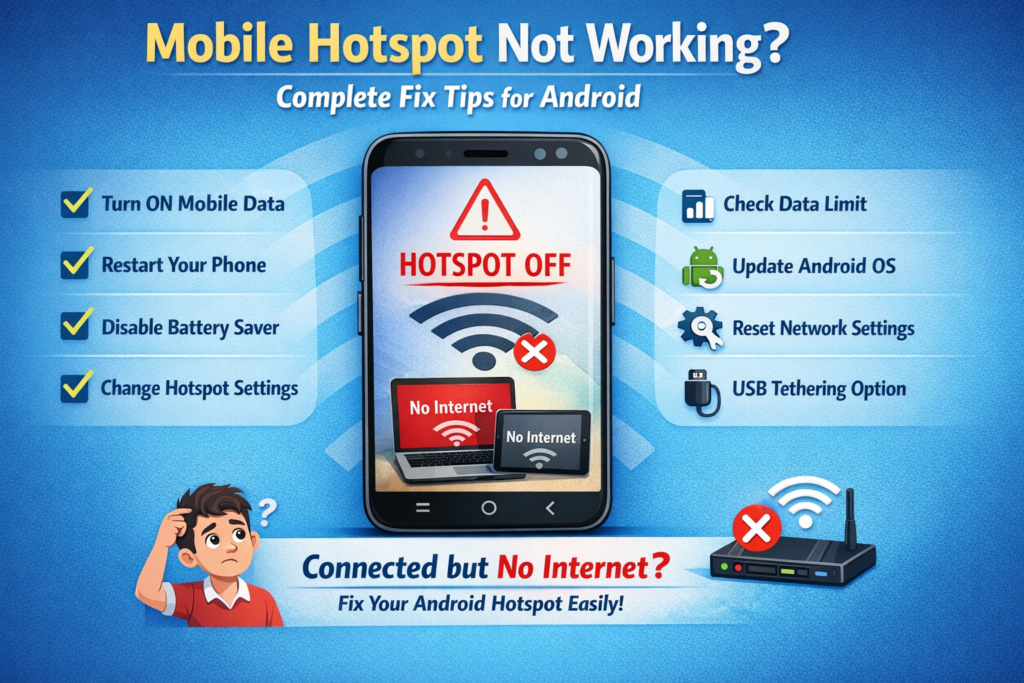
Step 1: Check If Mobile Data Is ON (Very Important)
Hotspot cannot work without mobile data.
What to do:
- Open Settings
- Go to Network & Internet
- Turn Mobile Data ON
- Open Chrome and check if internet is working on your phone
👉 If mobile data itself is not working, hotspot will never work.
Step 2: Restart Your Android Phone
This may sound simple, but trust me, friend — restart fixes 50% of hotspot issues.
Why restart helps:
- Clears background bugs
- Refreshes network connection
- Fixes temporary system glitches
How to do it:
- Press Power Button → Restart
After restart, turn on hotspot again and test.
Step 3: Turn Off Battery Saver Mode
Battery Saver limits background activities, including hotspot.
Steps:
- Go to Settings
- Open Battery
- Turn Battery Saver OFF
👉 If hotspot turns off automatically, battery saver is often the reason.
Step 4: Disable Data Saver
Data Saver blocks internet sharing.
Steps:
- Settings → Network & Internet
- Data Saver → Turn OFF
Now enable hotspot and check again.
Step 5: Check – Hotspot Settings Properly
Wrong hotspot configuration causes connection failure.
Do this carefully:
- Settings → Hotspot & Tethering
- Mobile Hotspot → Configure
Set:
- Security: WPA2-PSK or WPA2/WPA3
- Password: At least 8 characters
- Hotspot Name: Simple name (no symbols)
Save settings and reconnect devices.
Step 6: Change Hotspot Band (2.4GHz / 5GHz)
Many laptops and old phones don’t support 5GHz.
Steps:
- Hotspot Settings → AP Band
- Select 2.4GHz
- Save and reconnect
👉 This single step fixes hotspot not connecting to laptop issue.
Step 7: Check Data Limit Settings
If data limit is reached, Android blocks hotspot.
Steps:
- Settings → Data Usage
- Disable Set Data Limit
- Increase warning limit
Now try hotspot again.
Step 8: Check Network Signal Strength
Weak network = hotspot with no internet.
Fix tips:
- Move to open area
- Turn Airplane mode ON for 10 seconds → OFF
- Switch between 4G / 5G / Auto
Path:
Settings → Mobile Network → Preferred Network Type
Step 9: Update Your Android Software
Old software often has hotspot bugs.
Steps:
- Settings → Software Update
- Download and install latest update
Always keep your phone updated for stable hotspot performance.
Step 10: Reset Network Settings (Powerful Fix)
⚠️ This will remove saved Wi-Fi and Bluetooth connections.
Steps:
- Settings → System
- Reset Options
- Reset Wi-Fi, Mobile & Bluetooth
After reset:
- Restart phone
- Turn on mobile data
- Enable hotspot
👉 This is one of the best fixes if hotspot is not working at all.
Hotspot Connected but No Internet? Try These Fixes
If device connects but internet doesn’t work:
- Check if internet works on phone itself
- Turn OFF VPN apps
- Remove connected device and reconnect
- Forget hotspot network on other device
- Restart both devices
SIM Network Restriction Issue
Some telecom providers restrict hotspot usage.
What you can do:
- Check your data plan details
- Contact customer care
- Upgrade to hotspot-enabled plan
👉 Especially common in limited or cheap data plans.
Phone Overheating Can Disable Hotspot
Hotspot uses heavy power and data.
If phone gets hot:
- Remove phone cover
- Stop charging while using hotspot
- Keep phone in cool place
Overheating may force Android to turn hotspot OFF automatically.
USB Tethering as an Alternative
If Wi-Fi hotspot fails, try USB tethering.
Steps:
- Connect phone to laptop using USB cable
- Settings → Hotspot & Tethering
- Enable USB Tethering
This method is faster and more stable.
FAQs – Mobile Hotspot Not Working on Android
Q1. Why is my mobile hotspot not turning on?
Because mobile data is off, battery saver is enabled, or software issue.
Q2. Why hotspot keeps disconnecting?
Overheating, weak signal, or power saving features.
Q3. Can hotspot work without SIM?
❌ No, mobile data SIM is required.
Q4. Why laptop connects but internet doesn’t work?
Hotspot band issue, VPN, or data limit reached.
Pro Tips to Avoid Hotspot Problems in Future
- Always keep battery saver OFF while using hotspot
- Use 2.4GHz band for compatibility
- Avoid long hotspot use while charging
- Update Android regularly
- Don’t use VPN with hotspot
If your Android mobile hotspot is not – working, there is no need to panic, friend. In most cases, the problem is caused by simple settings like mobile data, battery saver, or network issues.
By following the step-by-step fixes explained in this guide, you can easily solve:
- Hotspot not turning on
- Hotspot connected but no internet
- Hotspot disconnecting problem
Mobile hotspot is a powerful feature, and once configured correctly, it works smoothly. Bookmark this article so whenever hotspot trouble comes again, you know exactly what to do 👍