
Are you looking to customize your smartphone like a pro? Whether you use Android or iPhone, understanding home screen settings can completely transform your mobile experience. From changing layout and icons to enabling Home Screen Drawer Mode Settings, this detailed step-by-step guide will help you unlock powerful customization features.
Your smartphone’s home screen is the first thing you see every time you unlock your device. Whether you use Android or iPhone, properly configuring your home screen settings can improve productivity, enhance performance, and make your phone look clean and professional.
how to open home screen settings, manage layout, use widgets, enable app drawer mode, and customize brand-specific devices like realme home screen settings, samsung home screen settings, oppo home screen settings, redmi home screen settings, and even iphone home screen settings.
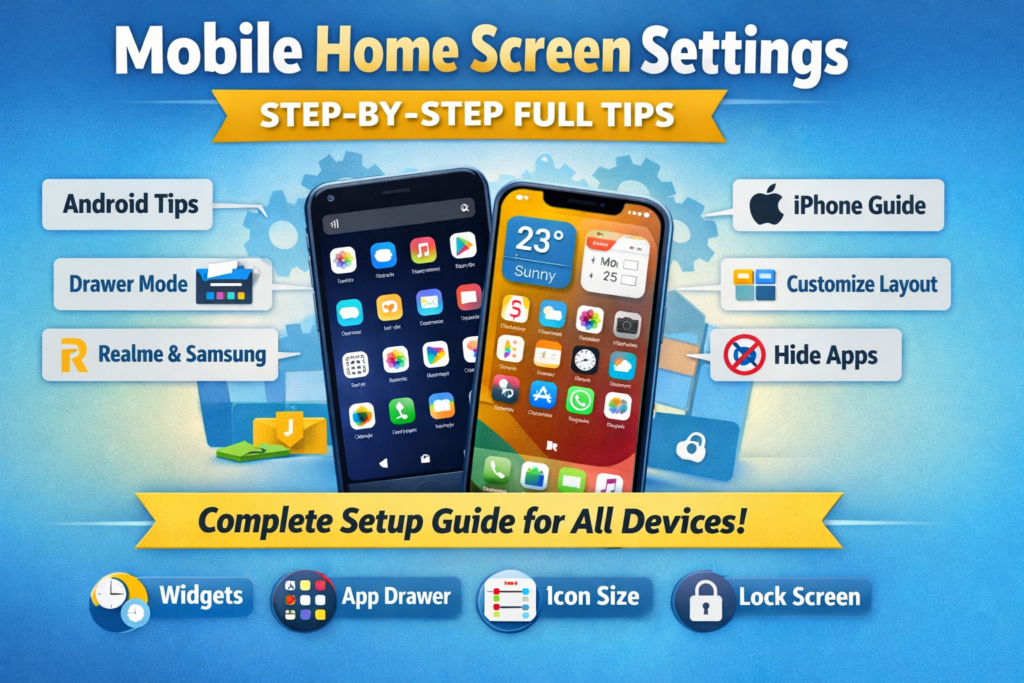
Table of Contents
1. What Are Home Screen Settings?
Home screen settings allow you to customize the appearance and behavior of your smartphone’s main screen. This includes:
- App layout
- Grid size
- App drawer mode
- Widgets
- Icon size
- Notification badges
- Wallpaper
- Locking layout
- App hiding
- Swipe gestures
Your home screen is the first thing you see when unlocking your phone. Proper configuration improves productivity and performance.
2. How to Open Home Screen Settings
Many users don’t know how to open home screen settings properly. Here are universal methods:
Method 1: Long Press Method (Works on Most Android Phones)
- Go to Home Screen.
- Long press on empty area.
- Tap on “Home Settings” or “Settings”.
Method 2: Through Phone Settings
- Open Settings app.
- Search for “Home Screen”.
- Tap on Home Screen options.
Method 3: For iPhone
- Long press empty space.
- Tap on “+” to manage widgets.
- Or go to Settings → Home Screen.
Simple and easy.
3. Home Screen Drawer Mode Settings Explained
One important feature is Home Screen Drawer Mode Settings.
There are usually two modes:
1. Standard Mode
All apps appear directly on home screen (like iPhone style).
2. Drawer Mode
Apps are stored in an App Drawer.
Home screen shows selected apps only.
How to Enable Drawer Mode (Android):
- Long press home screen.
- Tap Home Settings.
- Select “Home Screen Mode”.
- Choose “Drawer Mode”.
Drawer mode keeps your screen clean and organized.
4. Home Screen Settings Android – Complete Guide
When we talk about home screen settings android, features vary slightly by brand, but most Android phones allow:
- Change Grid Layout (4×4, 4×5, 5×5 etc.)
- Enable App Drawer
- Lock Layout
- Icon Size Adjustment
- Hide Apps
- Notification Dots
- Google Discover Page Toggle
- Home Screen Loop
Step-by-Step:
- Long press home screen.
- Open Home Settings.
- Choose layout.
- Adjust according to preference.
Android offers deeper customization compared to iPhone.
5. Realme Home Screen Settings – Step-by-Step
If you are using Realme UI:
How to Access Realme Home Screen Settings
- Long press empty area.
- Tap “Home Settings”.
- Select “Home Screen Mode”.
Features Available:
- Standard Mode
- Drawer Mode
- Icon Auto Align
- Lock Layout
- Swipe Down to Search
- Icon Size Change
- App Animation Speed
Realme UI is smooth and flexible.
6. Samsung Home Screen Settings – Full Customization
Samsung One UI offers advanced customization.
How to Open Samsung Home Screen Settings
- Long press on home screen.
- Tap “Settings”.
Available Options:
- Home Screen Layout
- Apps Screen Grid
- Home Screen Grid
- App Icon Badges
- Hide Apps
- Lock Home Screen Layout
- Add Media Page
- Rotate to Landscape Mode
Samsung users can also install Good Lock for deeper control.
7. Oppo Home Screen Settings – Easy Setup
Oppo uses ColorOS.
Steps:
- Long press home screen.
- Tap Settings.
- Choose Home Screen Mode.
Features:
- Drawer Mode
- Standard Mode
- Icon Autofill
- Lock Layout
- Double Tap to Lock
- Icon Size Adjustment
Oppo devices provide smooth animations and flexible settings.
8. Redmi Home Screen Settings – MIUI Tips
MIUI provides powerful customization.
How to Open Redmi Home Screen Settings
- Long press screen.
- Tap Settings.
- Choose “More”.
Features:
- With App Drawer / Without App Drawer
- Home Screen Layout
- Icon Size
- Animation Speed
- Hide Apps
- Lock Layout
MIUI allows both iPhone-style and Android-style layout.
9. iPhone Home Screen Settings – iOS Guide
Unlike Android, iphone home screen settings are slightly limited but clean.
How to Access:
- Go to Settings.
- Tap “Home Screen”.
Available Options:
- Add to Home Screen or App Library
- Notification Badges
- Large Icons (iOS 18+)
- Widgets
- App Library Only Mode
iPhone uses App Library instead of traditional drawer mode.
10. Advanced Customization Tips
Here are pro tips:
Use Widgets Smartly
Add weather, clock, calendar for productivity.
Use Folders
Group similar apps.
Hide Rarely Used Apps
Keeps screen clean.
Use Minimal Wallpaper
Improves visibility.
Lock Layout
Prevents accidental movement.
11. Performance Optimization Tips
Improper layout can slow your device.
Tips:
- Keep fewer widgets.
- Reduce animation speed.
- Use static wallpaper.
- Remove unnecessary apps.
- Keep grid optimized (4×4 best for performance).
Clean home screen = faster mobile.
12. Common Problems & Fixes
Problem 1: Home Screen Not Changing
Solution: Restart device.
Problem 2: Drawer Mode Missing
Solution: Update launcher.
Problem 3: Icons Reset Automatically
Solution: Lock layout.
Final Words
Understanding home screen settings helps you improve productivity, organization, and device performance. Whether you use home screen settings android, realme home screen settings, samsung home screen settings, oppo home screen settings, redmi home screen settings, or iphone home screen settings, this guide covers everything step-by-step.
Customize smartly. Keep it clean. Boost performance.
Keywords List
· home screen settings
· mobile home screen settings
· home screen settings android
· iphone home screen settings
· open home screen settings
· home screen drawer mode settings
· android home screen customization
· mobile home screen setup guide
· how to change home screen settings
· home screen layout settings