

Smartphones have become an important part of our daily lives. From communication to work, entertainment to learning, we rely on our phones for almost everything. The first screen we interact with every time we unlock our phone is the Open Home Screen Settings. This screen shows your apps, widgets, shortcuts, and notifications.
Learning how to open home screen settings allows you to customize and organize your smartphone exactly the way you want. Whether you want to change the layout, adjust icon size, add widgets, or create a cleaner look, home screen settings give you full control over your device experience.
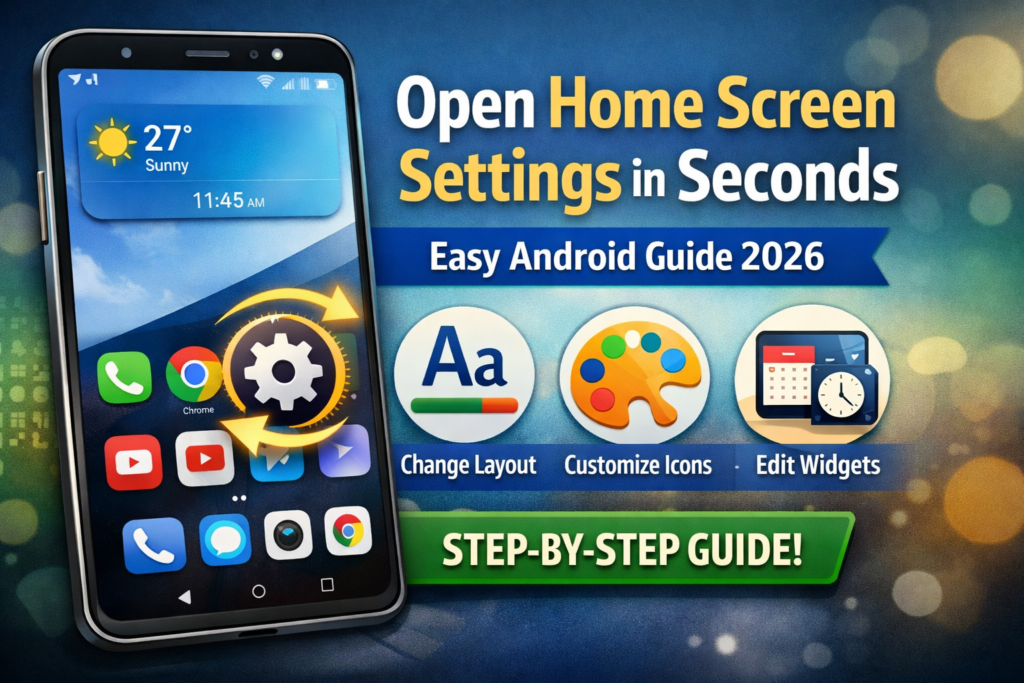
In this complete guide, you will learn:
- How to open home screen settings on Android
- Different methods to access home screen settings
- Important customization options
- Tips to make your phone faster and cleaner
- Common problems and solutions
- Frequently asked questions
This step‑by‑step guide is designed for beginners as well as advanced smartphone users.
Table of Contents
What Are Home Screen Settings?
Home screen settings are customization options that allow you to control the appearance and behavior of your phone’s main screen.
Using these settings, you can modify:
- Home screen layout
- App icon size
- Widget placement
- App drawer style
- Notification badges
- Wallpaper settings
- App grid size
These settings help you create a personalized phone interface that matches your needs and preferences.
Why Home Screen Settings Are Important
Many smartphone users never explore their home screen settings, but using these options can greatly improve your experience.
1. Better Organization
Home screen settings help organize apps and folders so you can find things quickly.
2. Faster App Access
You can place your most used apps on the home screen for quick access.
3. Clean Interface
Removing unnecessary apps and widgets makes your screen look clean and professional.
4. Improved Productivity
A well‑organized home screen helps you save time and stay productive.
5. Personalization
You can customize your phone to match your personality, style, and workflow.
How to Open Home Screen Settings on Android
There are several ways to open home screen settings on Android smartphones. Different phone brands may have slightly different steps, but the general process is similar.
Method 1: Long Press on the Home Screen
This is the easiest and most common method.
Steps:
- Unlock your Android phone
- Go to the home screen
- Find an empty space on the screen
- Press and hold (long press) on that area
- A menu will appear
- Tap Home Settings or Home Screen Settings
Now you will be able to customize the home screen.
This method works on most Android phones including Samsung, Xiaomi, Realme, Oppo, Vivo, and Motorola devices.
Method 2: Open from Phone Settings
Another way to access home screen settings is through the main settings menu.
Steps:
- Open the Settings app on your phone
- Scroll down
- Look for Home Screen option
- Tap the option
- Adjust layout, icon size, and other settings
This method is useful if the long press method does not work on your device.
Method 3: Using Launcher Settings
Some Android users install custom launchers for more advanced customization.
Popular launchers include Nova Launcher, Microsoft Launcher, and others.
Steps:
- Install a launcher from the Play Store
- Open the launcher app
- Go to launcher settings
- Tap Home Screen Settings
- Customize layout, gestures, icons, and animations
Launchers allow much deeper customization than default Android settings.
Important Home Screen Settings You Should Know
Understanding these important settings will help you get the most out of your smartphone.
Home Screen Layout
This setting allows you to control the grid layout of your home screen.
You can change:
- Number of rows
- Number of columns
- App grid size
Example layouts:
- 4 × 4 grid
- 4 × 5 grid
- 5 × 5 grid
Larger grids allow you to place more apps on the screen.
App Icon Size
Icon size determines how large or small your app icons appear.
Benefits of adjusting icon size:
- Larger icons for better visibility
- Smaller icons for more space
This option is especially useful for users with vision issues.
Widgets
Widgets are small tools that display information directly on your home screen.
Common widgets include:
- Weather
- Clock
- Calendar
- Music player
- Notes
Widgets allow you to see important information without opening apps.
App Drawer Settings
The app drawer is where all installed apps are stored.
Home screen settings allow you to customize:
- App drawer layout
- App sorting
- Hidden apps
This helps keep your home screen clean.
Notification Badges
Notification badges show unread notifications on app icons.
For example:
- WhatsApp messages
- Instagram notifications
- Email alerts
These badges help you track important updates quickly.
Advanced Home Screen Customization Tips
If you want your phone to look amazing, try these advanced tips.
Use Minimal Widgets
Too many widgets can slow down your device and make the screen messy.
Keep only important widgets.
Create App Folders
Group similar apps into folders.
Examples:
- Social media folder
- Work apps folder
- Entertainment folder
This makes your home screen cleaner.
Choose a Good Wallpaper
A high‑quality wallpaper can dramatically improve your phone’s appearance.
Tips for choosing wallpaper:
- Use simple designs
- Avoid very bright colors
- Match wallpaper with icon colors
Remove Unnecessary Apps
Many phones come with preinstalled apps that you rarely use.
Remove or hide these apps to keep your home screen organized.
Use Icon Packs
Icon packs change the appearance of your app icons.
This helps create a consistent visual style across your phone.
Common Problems When Opening Home Screen Settings
Sometimes users face issues when trying to open home screen settings.
Here are some common problems and solutions.
Home Screen Settings Option Not Showing
Solution:
- Restart your phone
- Try long pressing the screen again
- Check phone settings
Launcher Restrictions
Some phone brands limit customization options.
Solution:
Install a custom launcher for more control.
System Software Outdated
Old system versions may hide certain settings.
Solution:
Update your phone software.
Steps:
- Open Settings
- Tap Software Update
- Install latest update
Best Home Screen Layout Ideas
Here are some popular layout styles used by smartphone users.
Minimal Layout
- Only essential apps
- One or two widgets
- Clean wallpaper
Best for productivity.
Productivity Layout
- Calendar widget
- Notes widget
- Task apps
Perfect for work and study.
Entertainment Layout
- Music apps
- Video apps
- Gaming apps
Great for entertainment lovers.
FAQs (People Also Ask)
How do I open home screen settings?
Press and hold an empty area on your phone’s home screen and select Home Settings.
Why can’t I find home screen settings?
Your phone launcher may hide the option. Try opening the main Settings app and search for Home Screen.
Can I customize icons on my home screen?
Yes. You can change icons using icon packs or custom launchers.
How do I reset my home screen layout?
Open home screen settings and choose Reset Layout option if available.
Are widgets safe for phones?
Yes. Widgets are safe but using too many widgets may slow down your phone.
Can I change the grid size of my home screen?
Yes. Most Android phones allow you to change rows and columns in home screen layout settings.
Conclusion
Understanding how to open home screen settings is one of the easiest ways to improve your smartphone experience. These settings allow you to customize icons, layout, widgets, and many other features that make your phone easier and more enjoyable to use.
By following the step‑by‑step methods explained in this guide, you can quickly access home screen settings and personalize your Android device according to your needs. Whether you prefer a minimal design or a feature‑rich layout, the right settings can transform your phone interface completely.
Take a few minutes to explore these settings today and create a home screen that is clean, organized, and perfectly suited to your daily routine.
Tags open home screen settings, android home screen settings, customize home screen android, home screen layout android, android phone customization, mobile home screen guide, smartphone settings guide, android tips 2026

