

Android smartphones protect personal information through different lock screen options such as PIN, password, pattern, fingerprint, and face recognition. These security features help keep your photos, messages, banking apps, and personal files safe from unauthorized access.
However, there are times when users forget their PIN or pattern, the fingerprint sensor stops working, or the device becomes locked after multiple incorrect attempts. In such situations, many people search online for How to Open Home Screen Lock on Android to find a safe and reliable solution.
The good news is that Android offers several official and secure methods to regain access to your device. Depending on your phone model, Android version, and whether you remember your Google account, you may be able to unlock the device without losing your data. In some cases, a factory reset may be the only option, but it is important to understand its consequences before proceeding.
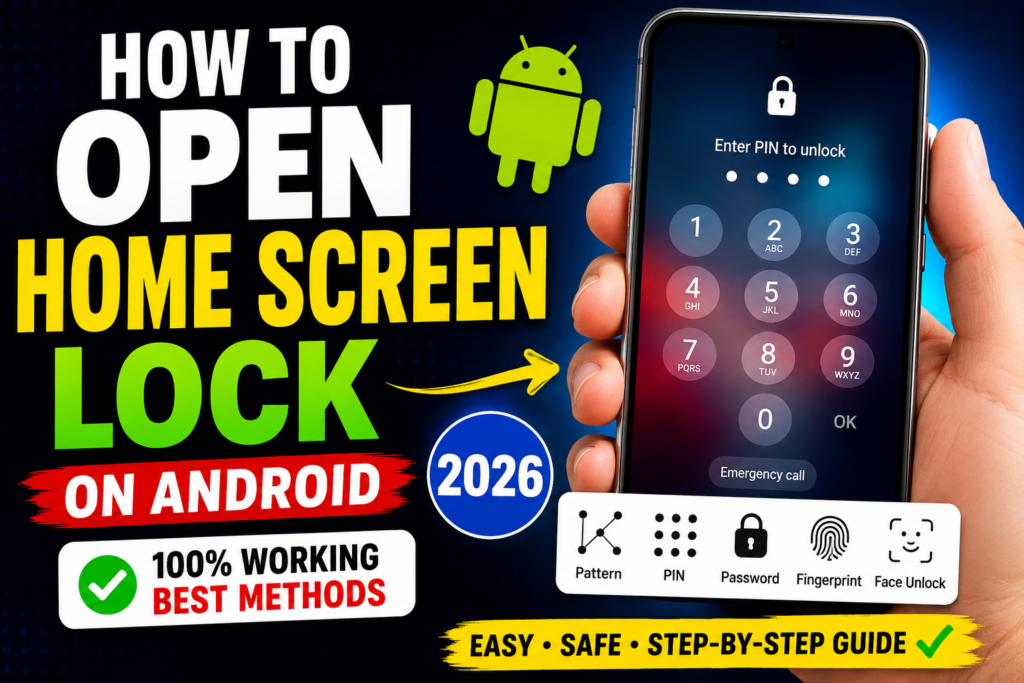
This guide explains the most effective methods available in 2026. Every method is described step by step in beginner-friendly language so that even first-time Android users can follow along safely.
Table of Contents
What Is a Home Screen Lock?
A home screen lock, commonly called a lock screen, is the security layer that appears before you can access your Android phone. It prevents anyone else from using your device without permission.
Popular lock types include:
- PIN Lock
- Pattern Lock
- Password Lock
- Fingerprint Lock
- Face Unlock
- Smart Lock
Using a lock screen protects your personal information and helps secure sensitive data if your phone is lost or stolen
- Best Battery Backup Mobile for Travel Use 2026
Why Android Phones Get Locked
There are several reasons why users search for How to Open Home Screen Lock on Android. Some of the most common situations include:
- Forgotten PIN, pattern, or password
- Fingerprint sensor not recognizing your finger
- Face Unlock failing due to lighting conditions
- Too many incorrect unlock attempts
- Software updates affecting lock screen behavior
- Screen damage making input difficult
- Children accidentally changing the lock settings
- Buying a second-hand phone that is still locked
Understanding the cause of the lock can help you choose the most suitable unlocking method.
Things to Know Before Unlocking
Before attempting any unlocking method, keep these important points in mind:
- Make sure the phone belongs to you or you have permission to unlock it.
- If possible, back up your data regularly to avoid data loss.
- Know your Google account credentials, as they may be required after certain recovery methods.
- Some methods, such as a factory reset, erase all data from the device.
- Avoid using unofficial unlocking software from unknown websites, as it may compromise your privacy or damage your device.
Method 1 – Unlock Using Your PIN
If you remember your PIN, unlocking your phone is straightforward:
- Press the power button to wake the screen.
- Swipe up if prompted.
- Enter your correct PIN.
- Tap the confirmation button if required.
- Your home screen will open.
If you enter the wrong PIN multiple times, Android may temporarily prevent further attempts. Wait for the specified time before trying again.
Method 2 – Unlock Using Your Pattern
If your phone uses a pattern lock:
- Wake the device.
- Draw the exact pattern you created.
- Lift your finger after completing the pattern.
- If correct, the device unlocks immediately.
Make sure you start from the correct point and trace the pattern accurately.
Method 3: Unlock Your Android Phone Using the Password
If your Android device is protected with a password and you remember it, unlocking your phone is quick and easy.
Steps to Unlock with a Password
- Press the Power button to wake up your phone.
- Swipe up if the lock screen asks you to.
- Enter your correct password.
- Tap Enter or OK.
- If the password is correct, your Android phone will unlock instantly.
Tips
- Make sure Caps Lock is off unless your password includes uppercase letters.
- Check for typing mistakes before trying again.
- Avoid entering the wrong password multiple times, as Android may temporarily lock you out.
Method 4: Unlock Using Fingerprint
Fingerprint authentication is one of the fastest and most secure ways to unlock an Android phone. If you have already registered your fingerprint, you can access your home screen in seconds.
Steps
- Press the Power button or tap the screen.
- Place your registered finger on the fingerprint sensor.
- Hold your finger still for a moment.
- Once the fingerprint is recognized, your phone will unlock automatically.
Common Reasons Why Fingerprint Unlock Doesn’t Work
- Your finger is wet or dirty.
- The fingerprint sensor has dust or smudges.
- The screen protector is blocking the sensor.
- The registered fingerprint no longer matches clearly.
Solutions
- Clean the fingerprint sensor with a soft cloth.
- Dry your finger before scanning.
- Try another registered finger.
- Use your backup PIN, pattern, or password if needed.
Method 5: Unlock Using Face Unlock
Many modern Android smartphones include Face Unlock, allowing you to unlock your device simply by looking at the screen.
Steps
- Turn on your phone’s display.
- Hold the phone at eye level.
- Make sure your face is clearly visible.
- Wait for the front camera to recognize your face.
- Once verified, the phone unlocks automatically.
Why Face Unlock May Fail
- Poor lighting conditions.
- Wearing sunglasses or a face mask.
- Camera lens is dirty.
- Your appearance has changed significantly.
Solutions
- Move to a brighter area.
- Clean the front camera.
- Remove anything covering your face.
- Use your PIN or password if Face Unlock fails.
Method 6: Unlock Using Smart Lock
Smart Lock is an Android feature that keeps your phone unlocked in trusted situations. If you enabled Smart Lock before getting locked out, it may allow you to access your device without entering your PIN every time.
Smart Lock Features
- Trusted Places – Keeps your phone unlocked at locations like your home.
- Trusted Devices – Unlocks your phone when connected to trusted Bluetooth devices.
- On-Body Detection – Keeps your phone unlocked while you’re carrying it.
How to Use Smart Lock
If your phone is already connected to a trusted Bluetooth device or you’re in a trusted location, wake the screen and check whether it unlocks automatically.
Note: Smart Lock must have been enabled before you lost access to your phone.
Method 7: Use Google Find My Device
Google’s Find My Device is an official service designed to help locate, secure, or erase a lost Android phone.
Important: On modern Android versions, Find My Device cannot directly remove your lock screen. However, if you choose to erase the device, you can regain access after setting it up again.
Steps
- Open Find My Device on another phone or computer.
- Sign in using the same Google account linked to your locked Android phone.
- Select your device from the list.
- Choose Erase Device if you cannot recover access by other means.
- After the reset, set up your phone again using your Google account.
Requirements
- Your phone must be connected to the internet.
- The Google account must already be signed in on the device.
- Find My Device should be enabled.
Method 8: Use Samsung Find My Mobile
If you own a Samsung Galaxy phone, Samsung provides an official recovery service called Find My Mobile.
Depending on your device model, Android version, and account settings, it can help you manage your device remotely.
Steps
- Visit Samsung’s Find My Mobile website from another device.
- Sign in with your Samsung account.
- Select your registered Galaxy phone.
- Check the available remote management options.
- Follow the on-screen instructions provided by Samsung.
Note: Available features vary depending on your phone model and software version.
Method 9: Factory Reset (Last Resort)
If none of the previous methods work, performing a factory reset may be the only remaining option.
Warning: A factory reset deletes apps, photos, files, and other data stored on your phone. If your device has Factory Reset Protection (FRP) enabled, you’ll need to sign in with the same Google account that was previously linked to the device after the reset.
General Steps
- Turn off your Android phone.
- Boot into Recovery Mode using the key combination for your phone model.
- Select Wipe Data/Factory Reset.
- Confirm your selection.
- Wait for the process to finish.
- Restart the phone and complete the setup process.
After Resetting Your Phone
- Sign in with your Google account.
- Restore your backup if available.
- Create a new PIN, password, or pattern.
- Re-enable fingerprint or Face Unlock.
- Update your security settings.
Which Unlock Method Is Best?
| Situation | Recommended Method |
|---|---|
| You remember your PIN or password | Enter the correct credentials |
| Fingerprint sensor works | Use Fingerprint Unlock |
| Face Unlock is enabled | Use Face Unlock |
| Smart Lock was enabled | Use Smart Lock |
| Samsung phone with Samsung account | Samsung Find My Mobile |
| No other option works | Factory Reset (last resort) |
Common Reasons You Can’t Open Your Android Home Screen Lock
If you’re searching for How to Open Home Screen Lock on Android, you may be facing one of these common issues. Identifying the exact problem can help you choose the right solution.
1. Forgotten PIN, Pattern, or Password
This is the most common reason users get locked out of their Android phones.
Solution:
- Try your backup unlock method if available.
- Use biometric authentication (Fingerprint or Face Unlock).
- If you still can’t access the phone, use official recovery options such as a factory reset if necessary.
2. Fingerprint Sensor Is Not Working
Fingerprint sensors may stop recognizing your finger due to dirt, moisture, or hardware issues.
Possible Fixes
- Clean the fingerprint sensor.
- Dry your fingers before scanning.
- Try another registered fingerprint.
- Restart your phone.
3. Face Unlock Isn’t Recognizing Your Face
Face Unlock may fail in certain conditions.
Possible Reasons
- Poor lighting
- Camera obstruction
- Wearing sunglasses or a face covering
- Significant changes to your appearance
Solution
- Move to a brighter location.
- Clean the front camera.
- Remove anything blocking your face.
- Use your PIN or password instead.
4. Touchscreen Is Not Responding
Sometimes the issue isn’t the lock screen—it’s the display.
Try These Steps
- Restart your phone.
- Remove the screen protector if it’s causing touch issues.
- Charge the battery if it’s very low.
- If the display is physically damaged, seek professional repair.
5. Phone Keeps Asking for the Password
Even if Fingerprint or Face Unlock is enabled, Android may occasionally require your PIN or password for security reasons, such as after a restart.
Solution
Enter the correct PIN, password, or pattern that you originally created.
Safety Tips Before Unlocking Your Android Phone
Before trying any unlocking method, keep these important points in mind.
Always Use Official Methods
Only use official Android recovery options or your device manufacturer’s tools. Avoid unofficial unlocking software that claims to bypass security.
Keep Your Google Account Information Safe
Your Google account is often required after a factory reset due to Factory Reset Protection (FRP).
Back Up Your Data Regularly
Use cloud backups or local backups so your important files can be restored if you ever need to reset your phone.
Charge Your Phone
Ensure your battery has at least 50% charge before attempting a reset or other recovery process.
Mistakes to Avoid
Many users make these mistakes while trying to unlock their phones.
❌ Entering the wrong PIN repeatedly.
❌ Downloading unofficial unlocking tools from unknown websites.
❌ Paying for services that promise guaranteed lock removal.
❌ Performing a factory reset without understanding that it may erase local data.
❌ Forgetting your Google account credentials before resetting the device.
How to Prevent Getting Locked Out Again
Follow these best practices to avoid future lockouts.
Use a Memorable PIN or Password
Choose a secure password that you can remember without writing it down in an insecure place.
Register Multiple Fingerprints
Turn On Automatic Backup
Add fingerprints from both hands so you have an alternative if one finger cannot be recognized.
Enable Face Unlock
If your phone supports it, Face Unlock can serve as a convenient backup method.
Enable Google Backup or your manufacturer’s backup service to protect your data.
Keep Recovery Information Updated
Make sure your Google account recovery email and phone number are current.
Expert Recommendations
If you’re wondering How to Open Home Screen Lock on Android, these expert tips can help.
- Keep your Android software updated.
- Use official security features only.
- Avoid rooting your phone unless you understand the risks.
- Enable Find My Device before you lose access.
- Create regular cloud backups.
- Store your Google account credentials securely.
Frequently Asked Questions (People Also Ask)
Can I open my Android home screen lock without losing data?
Yes, if you remember your PIN, password, pattern, or can use Fingerprint, Face Unlock, or Smart Lock. If a factory reset is required, local data may be erased unless it has been backed up.
Can Google remove my Android screen lock remotely?
On current Android versions, Google Find My Device is designed to locate, secure, or erase your phone. It generally does not remove the lock screen remotely.
Is it legal to unlock an Android phone?
Yes, if the phone belongs to you or you have permission from the owner. Attempting to bypass someone else’s device security without authorization may be illegal.
What should I do if I forget my Android password?
Try any available biometric unlock methods or official recovery options. If necessary, you may need to reset the device and sign in again with your Google account.
Which unlock method is the safest?
Using your correct PIN, password, fingerprint, or Face Unlock is the safest and most secure way to access your phone.
Understanding How to Open Home Screen Lock on Android (2026) is important for every smartphone user because lock screen issues can happen anytime due to forgotten passwords, fingerprint errors, or system glitches.
The good news is that Android provides multiple safe and official methods to regain access, such as PIN, password, fingerprint, Face Unlock, Smart Lock, and recovery tools like Google Find My Device or Samsung Find My Mobile.
In most cases, you do not need to panic. If you carefully follow the correct method based on your situation, you can unlock your device without risking your personal data.
However, if nothing works, a factory reset remains the final option—but it should always be used carefully because it may erase your stored data.
To avoid future lock issues, always keep your Google account secure, enable backups, and set up multiple unlocking methods.
Tags
- Android Unlock 2026
- Home Screen Lock
- Android Password Reset
- Unlock Android Phone
- Mobile Security Guide
- Forgot Password Android
- Samsung Unlock
- Google Find My Device