


Smartphones have become an important part of our daily life. We use them for communication, work, entertainment, social media, and many other activities. Because we interact with our phone many times a day, the Home Screen Settings Android plays a very important role in the overall experience.
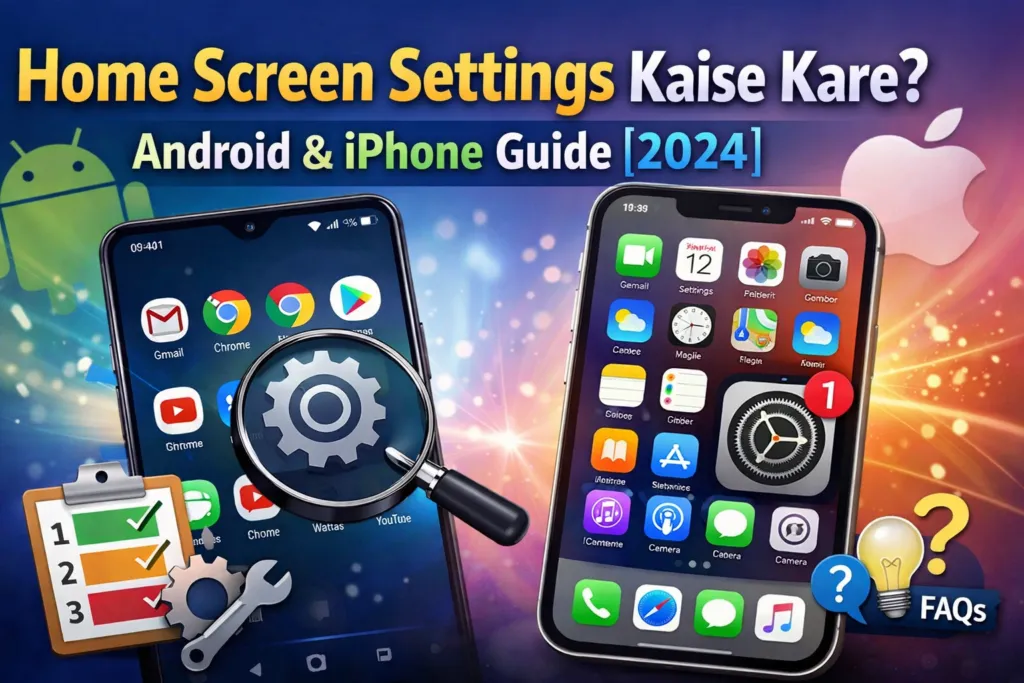
The home screen settings Android feature allows users to customize how their phone looks and works. You can change wallpapers, add widgets, organize apps, create folders, adjust icon sizes, and even redesign the entire layout.
Many users don’t realize that simple home screen customization can improve productivity, reduce screen clutter, and make apps easier to access. In this complete guide, you will learn everything about home screen settings Android, including step‑by‑step instructions for both Android and iPhone devices.
This guide is beginner‑friendly and optimized for modern smartphones in 2026, so anyone can follow it easily.
Table of Contents
What Are Home Screen Settings Android?
Home screen settings are the customization options that control how apps, widgets, shortcuts, and wallpapers appear on the main screen of your smartphone.
These settings allow users to personalize their device according to their needs and preferences.
Key Features of Home Screen Settings Android
With home screen settings you can:
- Change the home screen wallpaper
- Add useful widgets
- Organize apps into folders
- Adjust grid layout
- Lock home screen layout
- Change icon size
- Enable dark mode
- Add shortcuts
Customizing these options helps make your smartphone more organized and visually appealing.
Home Screen Settings Android – Step‑by‑Step Guide
Android phones provide powerful customization features compared to most other mobile operating systems. You can completely redesign your phone’s interface using built‑in settings and third‑party tools.
Below are the most important Android home screen customization methods.
Method 1 – Open Home Screen Settings
Before customizing anything, you must first access the home screen settings.
Steps
- Unlock your Android phone.
- Go to the home screen.
- Long press on an empty space.
- Tap Home Settings or Settings.
Once you open the home settings menu, you will see multiple customization options such as layout, widgets, grid size, and more.
Method 2 – Change Home Screen Wallpaper
Changing wallpaper is one of the easiest ways to customize your phone.
Steps to Change Wallpaper
- Long press on the home screen.
- Tap Wallpaper.
- Choose from default wallpapers or gallery images.
- Select Set as Home Screen.
You can also set live wallpapers which include animations and motion effects.
Tips for Choosing the Best Wallpaper
- Use high resolution images
- Avoid overly bright backgrounds
- Choose minimal wallpapers for better icon visibility
Method 3 – Add Widgets to the Home Screen
Widgets are mini applications that show information directly on the home screen.
For example, weather updates, time, calendar events, and music controls.
Steps to Add Widgets
- Long press on the home screen.
- Tap Widgets.
- Scroll through the widget list.
- Select the widget you want.
- Drag it to the home screen.
Popular Android Widgets
- Clock widget
- Weather widget
- Google search bar
- Calendar widget
- Music player widget
Widgets save time because you can access information without opening apps.
Method 4 – Change Home Screen Grid Layout
Grid layout controls how many apps appear on a single screen.
Steps
- Open Home Settings.
- Tap Home Screen Grid.
- Select grid size such as:
- 4×4
- 4×5
- 5×5
- 5×6
A larger grid allows more apps to appear on the screen.
Method 5 – Create App Folders
Folders help organize apps into categories.
Steps
- Drag one app icon over another.
- A folder will automatically be created.
- Tap the folder to rename it.
Example Folder Categories
- Social Media
- Work Apps
- Games
- Finance
- Tools
Using folders keeps your home screen clean and organized.
Method 6 – Lock Home Screen Layout
Sometimes apps move accidentally when touched. Locking the layout prevents this.
Steps
- Open Home Settings.
- Enable Lock Home Screen Layout.
Now your icons will remain fixed.
Method 7 – Enable Dark Mode
Dark mode changes the phone interface to darker colors which can reduce eye strain and save battery.
Steps
- Open Settings.
- Tap Display.
- Enable Dark Mode.
Dark mode also gives a premium look to your smartphone.
Advanced Android Home Screen Customization
If you want even more control over your home screen, Android offers additional customization options.
Use Launcher Apps
Launchers replace your phone’s default home screen.
Popular launchers allow deeper customization such as gestures, icon packs, and animations.
Popular Android Launchers
- Nova Launcher
- Microsoft Launcher
- Smart Launcher
- Niagara Launcher
These apps allow users to completely redesign their phone interface.
Install Icon Packs
Icon packs change the appearance of app icons.
They can make your phone look minimal, colorful, or futuristic.
Steps:
- Install an icon pack from Play Store.
- Apply it using launcher settings.
Add Custom Widgets
Some apps provide stylish widgets that enhance the home screen appearance.
Examples include:
- KWGT widgets
- Weather widgets
- Productivity widgets
Home Screen Settings on iPhone
Although iPhone offers less customization compared to Android, modern iOS versions allow many home screen improvements.
Change Wallpaper on iPhone
Steps:
- Open Settings.
- Tap Wallpaper.
- Tap Add New Wallpaper.
- Select a photo or system wallpaper.
You can also set different lock screen and home screen wallpapers.
Add Widgets on iPhone
Widgets became popular in recent iOS versions.
Steps
- Long press on the home screen.
- Tap the + icon.
- Choose a widget.
- Tap Add Widget.
Widgets can display useful information like weather, calendar, reminders, and news.
Use App Library
App Library automatically organizes apps by category.
Steps:
- Swipe left on the home screen.
- Access App Library.
Apps are grouped into folders such as social, entertainment, productivity, etc.
Best Home Screen Organization Tips
A well‑organized home screen improves usability.
Useful Tips
- Keep frequently used apps on the first screen
- Use folders for categories
- Avoid too many widgets
- Use simple wallpapers
- Enable dark mode for better readability
These tips help create a clean and efficient smartphone interface.
Common Home Screen Problems and Solutions
Apps Not Showing on Home Screen
Possible fixes:
- Restart the phone
- Check the app drawer
- Re‑add the app shortcut
Widgets Not Working
Fix:
- Update the app
- Restart the phone
- Remove and re‑add the widget
Icons Accidentally Moving
Enable Lock Home Screen Layout in home settings.
FAQs – People Also Ask
How do I access home screen settings on Android?
Long press on an empty area of your Android home screen and tap Home Screen Settings Android.
Can I customize Android home screen completely?
Yes. Android allows full customization using widgets, launchers, icon packs, and layout settings.
How do I change icon size on Android?
Open Home Settings → Grid Layout and choose a different grid size to adjust icon spacing.
How do I reset home screen layout?
Go to Settings → Apps → System Launcher → Clear Data.
This will reset the home screen layout to default.
Why are my apps missing from the home screen?
Some apps may appear only in the app drawer. Simply drag them back to the home screen.
Benefits of Customizing Your Home Screen
Customizing the home screen offers several advantages.
Key Benefits
- Faster app access
- Better phone organization
- Improved productivity
- Cleaner interface
- Personalized smartphone experience
Many professionals organize their phones to reduce distractions and improve efficiency.
Google Discover Tip – Create a Clean Smartphone Layout
Google Discover prefers content that includes clear visuals and helpful guides. Adding screenshots, step‑by‑step images, and featured images can increase the chances of appearing in Discover feeds.
Conclusion
The home screen settings Android feature gives you full control over how your smartphone looks and functions. From changing wallpapers and widgets to organizing apps and using launchers, Android allows deep customization.
Even iPhone users can personalize their home screen using widgets, wallpapers, and app organization tools.
By applying the methods explained in this guide, you can transform your smartphone into a clean, productive, and visually appealing device.
Take a few minutes today to customize your home screen and enjoy a better mobile experience in 2026.
Tags: home screen settings android, android home screen customization, android widgets guide, iphone home screen settings, smartphone tips, mobile customization, android tricks 2026